Hi, I had this problem for a long time when I was running Windows 10 and it’s the same now that I upgraded (same PC, fresh install) to Windows 11: on a normal startup, you end up with the CIS apparently missing from the taskbar. I’m saying “apparently” as in reality the taskbar icon is not missing, it’s right there where it’s supposed to be (and you can click on it to open the CIS window), but it’s invisible. It’s some sort of bug due to how/when CIS loads… for example, if I boot Windows but I wait a good 30 seconds on the login screen (before entering my password), then the icon is visible. If instead I login right away, my guess is that there is still something loading, and that causes the icon to be invisible. You can easy make it appear by right-clicking on it and turning ON/OFF Silent Mode (as that causes the icon change and refresh), but it should not do it in the first place.
For the record, I’m on CIS 12.2.2.8012, but again it has been doing this for quite a while.
Hi 120CCPM,
Thank you for reporting.
We are of this issue and the team is working on fix
We will keep you posted .
Thanks
C.O.M.O.D.O RT
Maybe not related, but similar.
On my latest big upgrade to Comodo 2025 on Win10pro(x64), all my Taskbar Icons (pinned to taskbar) were there but invisible.
Hilariously found out issue was had set Firewall to custom.
So disabled internet, and set firewall to train mode.
Rebooted and Taskbar icons visible!
Thought for sure it was HIPS and a process stuck in lala land.
But no, it was the firewall.
Maybe dissimilar to you issue, or maybe not.
Issue is specific to CIS and it appears to be related to the way it loads at startup: if you stay on the Windows login screen for ~30 seconds, giving time to various background apps/services to start and settle, then - once you actually log into Windows - the icon is there.
hi 120ccpm,
as a 15 year? plus user of Comodo, i very much get where you are coming from.
In this case though, when i fresh installed Comodo 2025 overwriting my old CIS (all rules - policies gone) the taskbar icons stayed invisible. Reboot after reboot and they never appeared.
Eventually, when i set my firewall to train for just 1 reboot, the taskbar icons instantly reappeared. After that firewall back to customs and icons still insta appear.
So in my situation, which may or may mot be similar to yours, as a long-time troubleshooter can say with 100% confidence this was the fix.
But sounds you have working with just a short delay now?
I never had the issue you’re mentioning, but in any case I tried what you suggested (switch the CIS Firewall to Training Mode and do a reboot) and it made no difference. My issue is not that the icon is gone… it’s there where it’s supposed to be, but it’s invisible. Also note that the Comodo Team responded to my post and said they are aware of this exact issue (and are working on a fix).
Here below a screenshot of my taskbar with the CIS icon “missing”:

The issue has been resolved with more recent versions. Ensure you are using the latest version or the old version .8012. - You may need to fresh install CIS/CFW.
Hi… the About box tells me I’m on 12.2.2.8012, and the Update window tells me I’m on the latest one… what am I missing? This was a fresh install, a couple weeks ago…
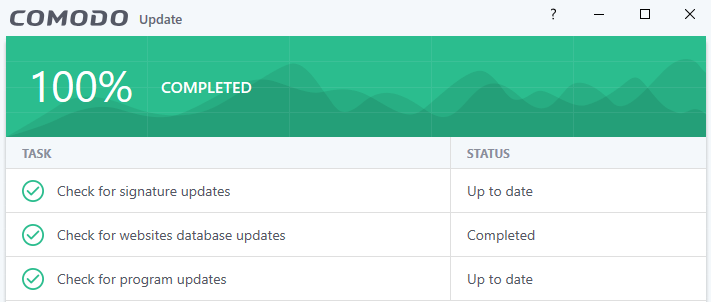
You might try the latest version 12.3.4.8162 (see topic first post for download links)as I know it was fixed for most in one of the versions leading up to it but your best with the latest version as earlier versions other than .8012 had some issues.
Am on very latest Comodo as well.
All my taskbar icons (as per first post) were invisible.
When i hovered i could sorta see ever so faintly a box outline, but nothing else.
Right click and each respective label-text appeared so i knew icons were there, just no graphics (or invisible)
That said, on the far right side of screen/taskbar where active programs are normally by default, they were visible, including comodo.
When you wrote ‘invisible’ it felt similar enough to mention.
Sounds like your issue is different enough, especially now that you tried, so will leave you to it.
Hope you get figured out!
Ok, I uninstalled what I thought was the latest version and installed what you suggested (12.3.4.8162), and now the issue is gone! Thank you! I’m a bit at a loss understanding why I was on an older version when the update page was telling me no upgrades were available… what am I missing? Is 12.3 a completely different edition than 12.2, and if you install 12.2 you are limited to the 12.2.x updates, from within the app? And even if that’s the case, how did I end up with 12.2 when I downloaded the installer directly from the Comodo website, just 2-3 weeks ago?
Check the version you’re on, because I believed to be on the very latest, but apparently I was not (see my reply to Eric, above). The current version (12.3.4.8162) doesn’t have the “invisible icon” issue anymore, I can log into Windows as fast as I can, and the icon is there.
The website links aren’t always the latest which has been mentioned/raised a number of times… You can change the Theme back to Lycia if you prefer the old UI which is what I do as I prefer that layout and I find it more informative. Anyway, you should be good now.
Good suggestion! I switched to Classic as the new UI was hiding a bit what I needed to see, but Lycia is a better option! Thanks again!
Hey, that’s awesome you got working! Enjoy!
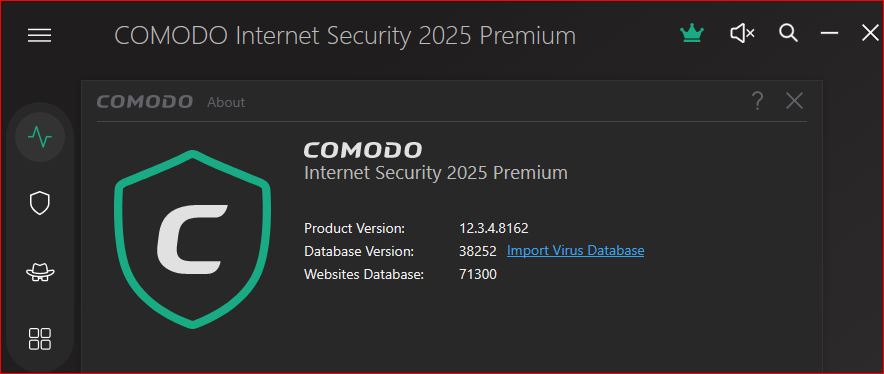
fyi: Was first thing i checked - version number and then DL’ing the extended AV.
Also ran updates twice to make sure.
Do 100% believe again, it was because i had set firewall to custom ruleset right away after installing. Using Comodo so long, that didn’t think it firewall would affect taskbar icon visibility. Good to know for troubleshooting future issues as extra option.