And I also have the HIPS settings and the rest of the settings haven’t changed for 8 years.
1 Like
And the question is that the AV module is triggered for harm. ButHIPS don’t.And the question is how to check the work of HIPS
1 Like
You can test the HIPS component fairly easily. Copy this into Notepad:
NetSh AdvFirewall Set AllProfiles State Off
and save as a WF.bat.
This is a script that will disable windows firewall. so first confirm that Windows firewall is enabled (control Panel/Windows defender firewall), then run the bat files as administrator. First do this with HIPS on, Containment off; then Containment on, HIPS off; then enable both.
You can view what was blocked in the Blocked Applications section on the GUI.
Finally disable both HIPS and Containment and check to see if Windows firewall was disabled (and you can enable it back easily from there).
4 Likes
Useful tip!
On a different note, my Asus updater loves to do unsigned powershel scripts which creates those Comodo tempscript powershell files that get contained over and over. I think I’ll need to either add them as trusted or just set containment to just run inside the container rather than alterting me every time. The other workaround would be disabling shell code detection for powershell but that’s not a good idea. I suppose I could also uncheck display notifications if it gets annoying.
Thanks for the test bat file tip 
2 Likes
Dear cruel sister, I sincerely thank you for your invaluable help. Everything helped. Everything works, both HIPS and Autocontainer.
1 Like
Eric- Although I’m not familiar with the Asus updater app that you reference, as Comodo doesn’t indicate that is malicious (just Unrecognized)- although I may be mistaken- it probably is just a cleanup script- these are rather common and can be either powershell or a cmd script (Kaspersky Virus Removal Tool will throw one of these off on exit).
A good way to verify is to clean out the AppData/local/Temp folder, then run the Asus updater with Containment off. When the Asus app closes look into the Temp folder again- it should be clean.
Now turn on Containment, run Asus Updater again and close it (you should get the Comodo popup as usual); Now check the Temp folder- there should be Asus stuff in there now.(which the ps script attempted to clean up).
Meghan
4 Likes
Thanks Meghan 
It’s a background update script that Comodo creates into a temp script file. Actually, the best view of what’s happening is this CyberLock alert that picks it up (see image below) It’s an execution policy bypass to run the background task and update the OEM software.

I’ll try out your suggestions today, thanks!!
Having a brainwave, it might just be this automatic critical update option that’s ticked. Will aso try that.

It is a background task as manual update note affecting it.
Alert:
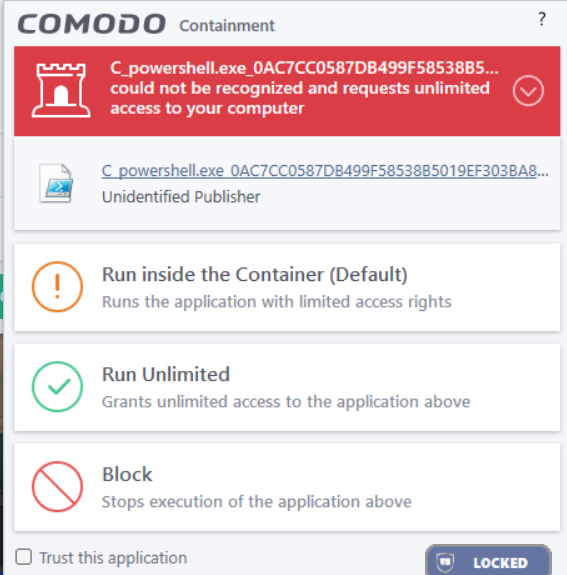
Contents of tempscript file

Anyway, so it’s a safe script so I’m presuming then it’s fine to allow as long as I check the script first and change the file rating.
Asus OEM software is annoying I even have to whitelist KeyboardHost and notifications from being contained.

Anyway, appreciated the help. Enjoy the rest of your weekend!
1 Like
When this usually happens, whether it’s ASUS or any other program. 
I ask the team to put it on the White List.
I always go to the topic here on the forum and put it there for someone from the team to analyze. to put it on.
After the team’s analysis, they put it on the white list, so I no longer have any problem alerts. 
I think this can help you.
2 Likes
Thanks. I did a post over there. It’s just OEM software being annoying and I’m seeing if there is a solution other than disabling embedded code injection for powershell.
We’ll see what they come back with and I’ll just dismiss the alerts in the meantime.
2 Likes
Exclude asussoftwaremanager.exe in containment.
1 Like
Thanks. I think that’s the right sort of solution. Kind of trial and error and see which is getting blocked as I still had a block after whitelisting Asussoftwaremanager but there are other executables in that folder that might be the cause. Thanks for the tip.
1 Like
You can try excluding the folder. Exclusion in containment doesn’t mean Comodo will trust the file. The file will appear in containment, but it shouldn’t affect the file’s operation. Trust the file in containment after exclusion. If it doesn’t work, try excluding the folder or the related files.
2 Likes
“whitelisting Asussoftwaremanager”
By whitelisting, do you mean trusting or ignoring? There is a difference when you trust and when you ignore a file in Comodo. Ignoring has more rights than trusting.
1 Like
I just created an Ignore rule. The files are already trusted in File Rating. I do think it’s down to Comodo’s embedded code detection of powershell scripts and I’m wondering if it’s possible to whitelist the source to stop the scripts being blocked. Anyway, will upload the files and just see how Ignoring the folder goes.
EDIT: I’ve just disabled MyAsus running in the background. Will see if that works and if not, look into it more tomorrow.
I remembered reading it’s fine to just contain these scripts so just set containment to run in side the container automatically and save the hassle for now.

2 Likes
Just curious as to how much stuff remains for you in the Program Data\Comodo\CIS\tempscrpt directory…
2 Likes
Check for Asus folders in program files, program data, and user folders and exclude them in containment to see if it solves the issue.
1 Like
The limit is set to 100KB worth by default and given that one is 1kb, presumably there will be 100 of them. I’ve uninstalled and reinstalled CIS/CFW a few times recently in testing out various setups so it’s been on and off and only on this installation, I thought it worth bringing up the Asus containment issue and especially with you around to offer suggestions
1 Like
As time goes by, does anyone know why it is still disabled? I believe there is a problem or the same thing happens to everyone. The COMODO team did not answer this question of mine. 
Dear EricCryptid, please tell me, do you use COMODO with CyberLock?