That might have done the trick.
So if CIS keeps blocking other apps that I told it not to block, should I also change them to Installer/Updater?
That might have done the trick.
So if CIS keeps blocking other apps that I told it not to block, should I also change them to Installer/Updater?
Only if it’s an app you trust, use your own discretion and try all the other things like adding it to trusted files and allowed etc. You just need to do the analysis before just blindly adding it as installer/updater hence the warning you get when you change it to that in HIPS.
Should I change explorer and Task Manager to Installer/Updater?
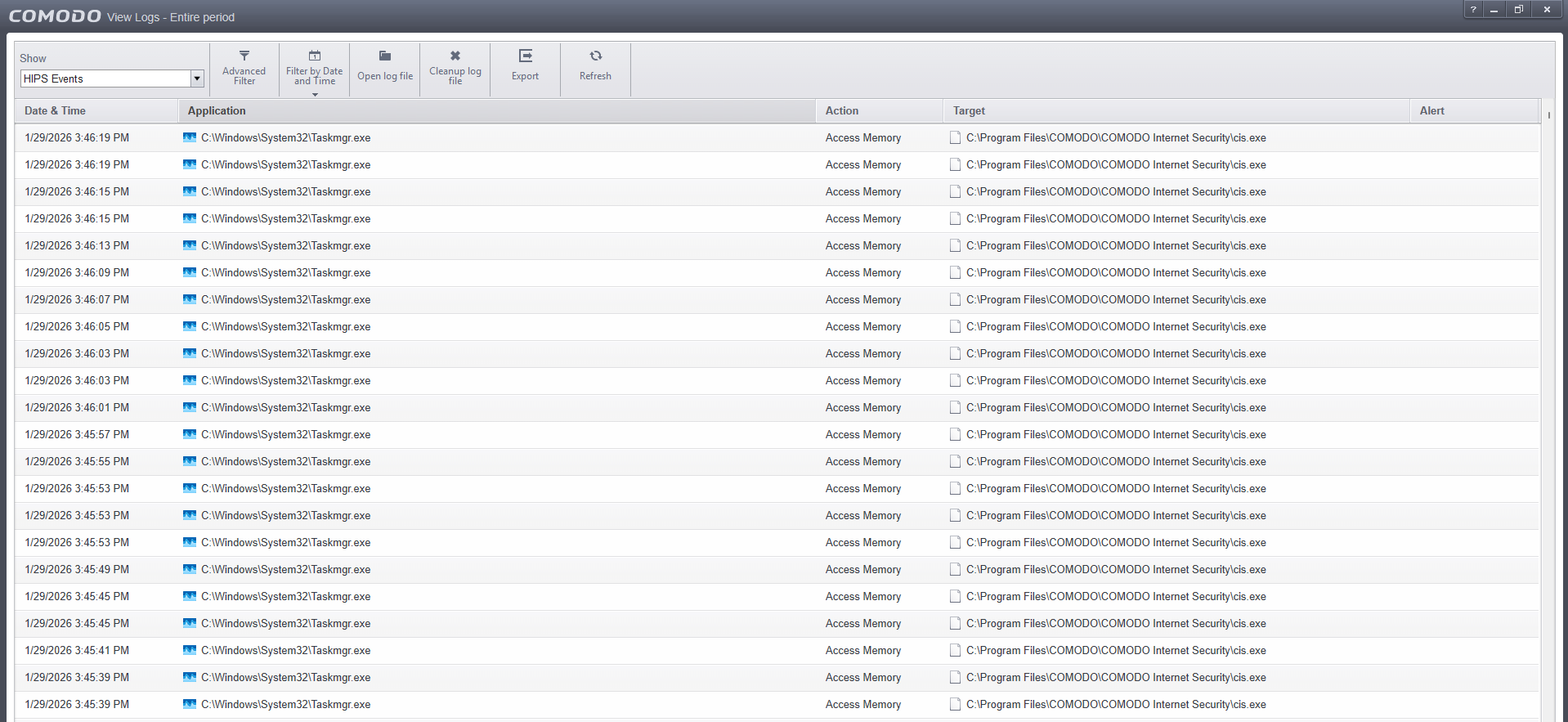
I wouldn’t. CIS blocks Explorer and Task Manager when they try to access Comodo processes/files. With Explorer, I think it’s due to indexing but it’s protecting itself by blocking that action but it will still should be working as normal. Is explorer and task manager working as intended?
If generating dozens of alerts in CIS is considered working as intended, then yes, they work as intended.
There’s nothing wrong with lots of blocking log entries, it won’t have any impact of your system and as long as explorer and task manager work fine, there’s nothing needed to be done. When I used to have CFW log every blocked connection it would be a couple thou0 minsand blocks every 10 minutes. You could look at the log and see what the possible cause is. Have you got a screenshot of a handful of entries for both? I got to get to work but I may get time to look at it this evening.
You believe that as long as everything seems to work fine, alerts can be ignored.
I believe that it’s not normal for anti-virus program to generate dozens of alerts per minute, because 1) it confuses the hell out of me, and 2) with thousands of entries it would be hard to spot actual alerts that should be handled.
We can agree to disagree and wait for devs instead of you constantly telling me that it’s fine. Because I don’t believe it’s fine.
Taskmanager is for some reason trying to access Comodo files in memory so it’s a HIPS alert. Adding Taskmanager as Installer/Updater would me that you could freely disable or terminate Comodo Processes. It’s not uncommon for malware to disguise itself as task manager. Now, you might be able to create a HIPS rule that would prevent CIS/CFW from logging that event but I don’t have that expertise. I thnk something is wrong with your taskmanager setup.
Let’s hope devs have more expertise and let’s wait for them.
Correct me if I am wrong, but if I allow taskmgr.exe located in a specific Windows folder, shouldn’t CIS block any other similar named app if such app tries to run from a different folder and shouldn’t CIS block any malware attempts to replace legit taskmgr.exe with a fake one? You suggested marking pppServiceMonitor.exe as Installer/Updater. What if there’s some malware that masquerades as this process, and now I gave it so much rights?
The help articles should provide clarification.- https://help.comodo.com/topic-72-1-766-9024-Introduction-to-Comodo-Internet-Security.html I don’t have the time currently to dive into this further. @C.O.M.O.D.O_RT will be able to put forth your questions to the relevant teams.
To answer your question, yes in theory but head the below warning regarding Installer Updater:
Note on ‘Installer or Updater’ Rule : Applying this rule to an application defines it as a trusted installer. All files created by this application will also be trusted. Some applications may have hidden code that could impair the security of your computer if allowed to create files of their own. Comodo advises you to use this ‘Predefined Ruleset’ - ‘Installer or Updater’ with caution. On applying this ruleset to any application, an alert dialog will be displayed, describing the risks involved.
Hopefully someone else will chime in and provide a solution to CyberPower processes getting contained, because I start to think that maybe marking pppServiceMonitor.exe as Installer/Updater was not the right thing to do as it’s technically neither an installer not an updater.
It’s not early 2000s, a bit harder to get unlicensed software nowadays. And no, I’m not that stupid to complain online while running unlicensed software.
I’ve only ever experienced Task Manager blocks when I’ve right clicked and checked the properties of a CIS process and only ever explorer when I’ve searched for a file to whitelist within the CIS/CFW UI. I do think it may be worth investigating your task manager as I think it’s behaving unusually or maybe it’s something to do with your setup. Do you use Proactive Configuration with default settings?
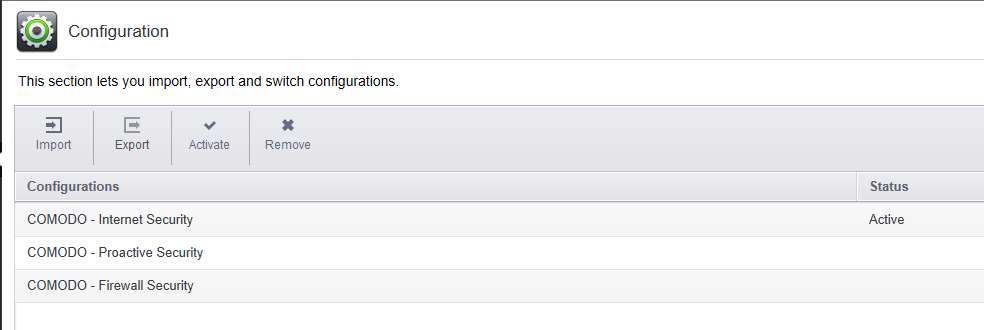
Thanks. Proactive Configuration enables all of the protection features including HIPS by default. You might give it a try and see if your experiencing the same issues. Save or export your configuration before you switch. I prefer the Lycia theme but each to their own.
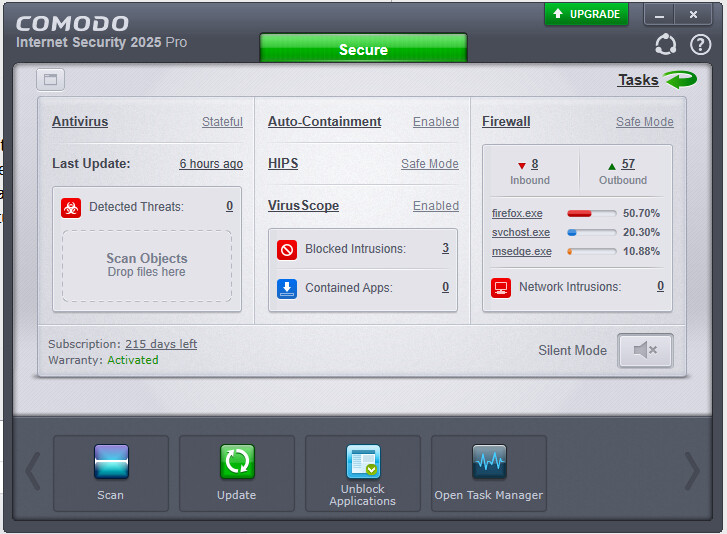
I already have HIPS enabled. How would it be different with Proactive Configuration?
Below although a little outdated is from the help files. Just all of the interfaces and vectors are covered with Proactive. Internet security config doesn’t have hips enabled by default these days. CruelSister has stated a number of times that HIPS can be bypassed which I why I like her Comodo Setup. Beyond that HIPS rule, have you changed any other settings? The more you mess with the configuration, the more things go unstable.
COMODO - Internet Security - This configuration is activated by default when both Antivirus and Firewall components are installed. The firewall is always set to ‘Safe mode’ but, according to the results of the ‘Quick Scan’ performed during the setup process, the HIPS setting may vary. If no malware is found, HIPS is set to Clean PC mode.Not enabled by default since .8012 Otherwise, the default is ‘Safe Mode’.
Auto-Containment is Enabled.
Only commonly infected files/folders are protected against infection.
Only commonly exploited COM interfaces are protected.
HIPS is tuned to prevent infection of the system.
COMODO - Proactive Security - This configuration turns CIS into the ultimate protection machine. All possible protections are activated and all critical COM interfaces and files are protected. During the setup, if only Comodo Firewall installation option is selected, the next screen allows users to select this configuration as default CIS configuration. If selected, Firewall is always set to Safe mode. But according to the ‘Quick Scan’ results performed during the setup process, if no malware is found, HIPS is set to Clean PC mode. Otherwise, the default is Safe mode.