Lycia Theme lock up the Comodo Internet Security setting
What do you mean by “lock up” the Comodo Internet Security Setting? You can change your configuration in the settings. Internet Security configuration will still protect you fully, it’s a balance of useability and protection. Proactive configuration covers more bases. Again, it would be good for you to elaborate more on these rather than a once sentence statement.
I could not change settings the only way for me to fix it was do a system restored to early state to solve it
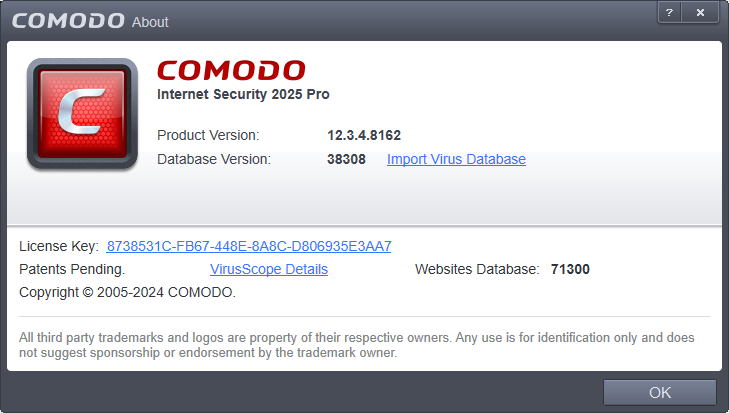
That’s strange. I use Lycia Theme all the time and never had any issue. If you can let us know your CIS version number and what tweaks you’ve made to CIS then @C.O.M.O.D.O_RT will have the devs look into it.
Hi Mbauermeister,
Thank you for reporting.
We have tested and found that the setting works when CIS theme set to “Lycia Theme”.
However we will check and update you.
@EricCryptid Thanks for supporting.
Thanks
C.O.M.O.D.O RT
Actually, this isn’t a Lycia theme bug. Lycia’s significant reliance on JavaScript, admin hooks, and file writes simply throws off the confinement and control of Comodo Internet Security. Then, as a precaution, Comodo locks its own settings user interface.
Usually, the solution is easy:
In Comodo Internet Security, whitelist the entire WordPress directory.
Once you’ve switched to training mode, load WP-admin with Lycia enabled, and then switch back.
Minified assets and remove the Lycia cache to prevent Comodo from rescanning
Lockups cease as soon as Comodo “learns” the behavior.
Fixing JavaScript Errors on Windows 11
JavaScript errors on Windows 11 can occur due to various reasons such as outdated browsers, disabled JavaScript, or corrupted files. These errors can prevent web pages from functioning correctly.
Example
JavaScript error occurred in the main process

Common Causes and Solutions
- Enable JavaScript in Your Browser
JavaScript might be disabled in your browser settings, causing errors.
Example: In Google Chrome:
-
Click on the three vertical dots in the upper-right corner.
-
Go to Settings > Privacy and security > Site Settings.
-
Under Content, click on JavaScript and toggle it to Allowed.
-
Update Your Browser
Using an outdated browser can lead to JavaScript errors.
Example: In Google Chrome:
-
Click on the three vertical dots in the upper-right corner.
-
Go to Help > About Google Chrome.
-
Chrome will automatically check for updates and install them.
-
Clear Browser Cache
An outdated browser cache can cause issues with JavaScript.
Example: In Google Chrome:
-
Click on the three vertical dots in the upper-right corner.
-
Go to More tools > Clear browsing data.
-
Select Cached images and files and click Clear data.
-
Disable Browser Extensions
Extensions can interfere with JavaScript execution.
Example: In Google Chrome:
-
Click on the three vertical dots in the upper-right corner.
-
Go to More tools > Extensions.
-
Disable any suspicious extensions.
-
Run System File Checker (SFC)
Corrupted system files can cause JavaScript errors.
Example:
- Open Command Prompt as an administrator.
- Type sfc /scannow and press Enter.
- Wait for the scan to complete and follow any instructions.
By following these steps, you can resolve most JavaScript errors on Windows 11 and ensure a smooth browsing experience.
Learn more:
1 -windowsreport.com2 -supportyourtech.com3 -answers.microsoft.com
Which Windows edition do you have